
Your Site Just Lost a Customer. Here Is Why.
A visitor landed on your website. They waited. Then they left. You never even knew.
That is not a hypothetical. Google’s own research shows that as page load time increases from 1 second to 3 seconds, the probability of a visitor bouncing increases by 32%. Push that to 5 seconds, and the bounce probability jumps 90%. In a world where attention spans are razor-thin and competition is one click away, websitespeedis not a technicality. It is a business decision.
In 2026, Google has made it clearer than ever: slow websites lose rankings, lose traffic, and lose revenue. If your site is sluggish, you are not just frustrating users, you are handing rankings to your competitors on a silver platter.
This guide covers everything about page speed optimization, from what it means, to why it matters for SEO, to exactly how to fix it for WordPress, Shopify, or any website. No fluff. No jargon overload. Just clear, actionable answers.
What Is Page Speed?
Page speed refers to how fast the content of a specific webpage loads and becomes usable for a visitor. It is not a single number but a collection of timing measurements that together paint a picture of how a user actually experiences your site.
Think of it this way: opening a webpage is not a single event. It is a sequence. The browser sends a request to the server, the server responds, the page starts rendering, images load, fonts appear, buttons become clickable. Page speed metrics measure each stage of this process.
The most important thing to understand is that page speed is measured from the user’s perspective, not the server’s. A page that loads fully in technical terms but feels slow to the visitor is still slow.
Core Web Vitals: Google’s Official Speed Scorecard in 2026
Google does not just care about raw load time. Since 2021, it has used a set of metrics called Core Web Vitals as direct ranking signals. These are the metrics that matter most for SEO in 2026.
Largest Contentful Paint (LCP)
LCP measures how long it takes for the largest visible element on the page to fully load. That is usually a hero image, a large heading, or a video thumbnail. It answers the question users are silently asking: when can I actually see what this page is about?
Google’s Good threshold for LCP: Under 2.5 seconds.
Poor LCP is the most common Core Web Vitals failure. It is usually caused by unoptimized images, slow server response times, or render-blocking CSS and JavaScript.
Interaction to Next Paint (INP)
INP replaced First Input Delay (FID) as a Core Web Vital in March 2024 and remains a key signal in 2026. It measures how quickly your page responds to every user interaction, not just the first one. Every click, tap, and keyboard input is measured.
Google’s Good threshold for INP: Under 200 milliseconds.
High INP usually means too much JavaScript is running on the main thread, blocking the browser from responding to the user promptly.
Cumulative Layout Shift (CLS)
CLS measures visual stability. Specifically, it tracks how much the page layout unexpectedly shifts while loading. You have experienced bad CLS before: you go to click a button and it jumps just as you tap it.
Google’s Good threshold for CLS: Under 0.1.
Common causes include images without defined dimensions, ads that inject themselves into the layout, and web fonts that load late and push content around.
Time to First Byte (TTFB)
TTFB is technically a server-side metric, measuring how long it takes from the moment a browser requests your page to the moment it receives the first byte of data back. It reflects your hosting quality, server configuration, and caching efficiency.
Google’s recommended TTFB: Under 800 milliseconds.
A slow TTFB means every other metric suffers, because the page cannot start loading until the server responds.
Here is a quick reference for Core Web Vitals thresholds:
| Metric | Good | Needs Work |
| LCP | Under 2.5s | Over 4.0s |
| INP | Under 200ms | Over 500ms |
| CLS | Under 0.1 | Over 0.25 |
| TTFB | Under 800ms | Over 1800ms |
Why Page Speed Directly Impacts Your SEO in 2026
Page speed is not just a user experience issue. It is baked into how Google ranks websites. Here is the full picture of why it matters.
Confirmed Google Ranking Factor
Google first confirmed page speed as a desktop ranking factor in 2010. In 2018, it was extended to mobile search rankings as well. In 2021, Core Web Vitals became an official page experience ranking signal. That signal has only grown stronger since.
Google’s position is simple: it wants to send users to pages that deliver a good experience. A slow page fails that test.
Slow Pages Kill Conversions
Deloitte’s research found that a 0.1-second improvement in load speed resulted in an 8% increase in conversions for retail sites. Amazon famously calculated that every 100 milliseconds of extra latency cost them 1% in sales.
For Shopify store owners, this is especially critical. Your product page speed is directly tied to whether a visitor adds to cart or bounces.
Google Crawls Slow Sites Less Efficiently
Google’s crawl budget is limited. When pages load slowly, Googlebot visits fewer pages per crawl session. For large websites, this means new content takes longer to get indexed. A faster site means more pages crawled, more content indexed, and more opportunities to rank.
Mobile Users Are Even More Affected
In 2026, more than 60% of web traffic globally comes from mobile devices. Mobile connections, especially in mid-tier markets, are slower than broadband. A page that loads acceptably on a desktop can be unbearably slow on a phone. Google’s mobile-first indexing means your mobile speed is what Google actually evaluates.
How to Measure Your Page Speed: The Right Tools
Before you optimize anything, you need an accurate baseline. Here are the tools professionals use.
Google PageSpeed Insights
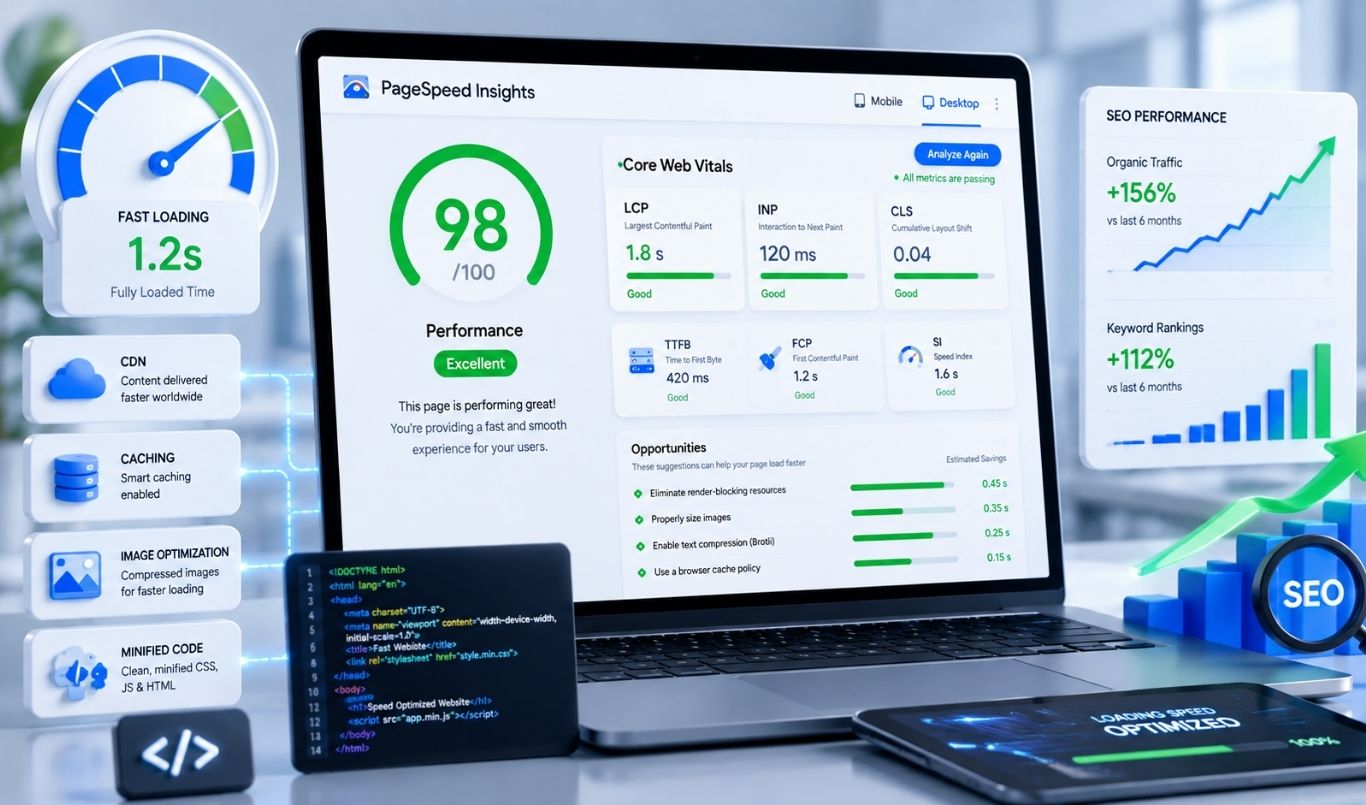
Google PageSpeed Insights (PSI) is the most authoritative free tool available. It combines real-world data from the Chrome User Experience Report (CrUX) with lab data from Lighthouse. It scores your page from 0 to 100 and gives specific, actionable recommendations.
Use it at: pagespeed.web.dev
Google Lighthouse
Lighthouse is the open-source auditing engine behind PageSpeed Insights. It is built into Chrome DevTools under the Performance tab. Lighthouse gives you a full breakdown of performance, accessibility, best practices, and SEO, all in one audit. It is the gold standard for diagnosing specific issues.
GTmetrix
GTmetrix provides detailed waterfall charts showing exactly which resources take the longest to load. It supports testing from multiple geographic locations and lets you monitor pages over time. Excellent for identifying bottleneck resources like large JavaScript files or unoptimized images.
WebPageTest
WebPageTest is the most technically detailed free tool available. It lets you test from real devices and browsers, run a filmstrip view to see exactly how your page renders frame by frame, and measure advanced metrics like Speed Index and Total Blocking Time. It is the choice of performance engineers who need deep diagnostics.
Page Speed Optimization: The Complete Action Plan
Here is where most guides go wrong. They list 20 vague tips and leave you guessing. This section breaks down every meaningful optimization technique with clear explanations of what it does, why it works, and who it applies to.
1. Optimize Images
Images are the single largest contributor to page weight on most websites. An unoptimized image gallery can easily add 3 to 5 megabytes to a page load. Image optimization is the highest-ROI fix available.
Convert to Modern Formats: WebP and AVIF
WebP is a modern image format developed by Google that produces files 25 to 35 percent smaller than JPEG at equivalent quality. AVIF is even more efficient, offering up to 50 percent smaller files than JPEG, though it has slightly less browser support. Both are supported by all major modern browsers in 2026.
WordPress users can use plugins like ShortPixel, Imagify, or Smush to automatically convert and serve WebP or AVIF. Shopify automatically serves WebP when the browser supports it.
Compress Without Quality Loss
Even in modern formats, images should be compressed before uploading. Tools like Squoosh (Google’s free web app) and TinyPNG allow you to compress images while preserving acceptable visual quality. A 2MB product photo can often be reduced to 150KB with no visible difference.
Implement Lazy Loading
Lazy loading means images only load when they scroll into the user’s viewport. Instead of loading every image on the page when it first opens, the browser prioritizes what is visible and defers the rest. This is built into modern browsers via the loading=’lazy’ attribute and dramatically reduces initial page weight.
WordPress note: Lazy loading is enabled by default in WordPress core since version 5.5.
2. Use a Content Delivery Network (CDN)
A CDN stores copies of your website’s static assets (images, CSS, JavaScript, fonts) on servers distributed across dozens or hundreds of locations worldwide. When a visitor loads your site, they receive files from the server geographically closest to them rather than your origin server.
The result is dramatically lower latency. A visitor in Los Angeles loading a site hosted in New York experiences the same fast response as if they were loading from a local server.
Cloudflare is the most widely used CDN and offers a free plan that covers small to mid-size websites. Amazon CloudFront and Fastly are enterprise-grade alternatives.
3. Enable Server-Side and Browser Caching
Browser Caching
When a browser caches your website’s assets, it stores them locally on the visitor’s device. On repeat visits, the browser loads those files from local storage instead of re-downloading them from your server. For returning visitors, this can make your site feel nearly instantaneous.
You enable browser caching by setting cache-control headers on your server, specifying how long browsers should keep different types of files. CSS, JavaScript, and images should typically be cached for at least one year.
Server-Side Caching
Server-side caching stores generated HTML pages so the server does not have to rebuild them from scratch for every visitor. Instead of running database queries and executing PHP to generate each page load, the server serves a pre-built HTML file.
For WordPress sites, plugins like WP Rocket, W3 Total Cache, or LiteSpeed Cache handle this automatically. Redis is a high-performance in-memory caching database used for more advanced server-side caching implementations.
4. Eliminate Render-Blocking Resources
When a browser encounters a CSS or JavaScript file in the HTML, it stops rendering the page until that file is fully downloaded and processed. These are called render-blocking resources, and they are one of the most common reasons pages feel slow even on fast connections.
Fix CSS
Identify the critical CSS required to render above-the-fold content and inline it directly in the HTML head. Defer the rest of your CSS to load after the initial render. This technique, called Critical CSS extraction, ensures users see a styled page immediately.
Fix JavaScript
Add the ‘defer’ or ‘async’ attribute to non-critical script tags so JavaScript loads after the HTML is parsed. Move scripts that do not need to run immediately to the bottom of the page or defer them entirely until user interaction is triggered.
5. Minify CSS, JavaScript, and HTML
Minification removes unnecessary characters from code files: whitespace, line breaks, comments, and long variable names. A CSS file that is 200KB of formatted, commented code might minify to 120KB without any functional change.
WordPress plugins like WP Rocket, Autoptimize, and Asset CleanUp handle minification automatically. Shopify minifies CSS and JavaScript by default in most themes.
6. Enable Gzip and Brotli Compression
Compression reduces the size of files transferred between your server and the visitor’s browser. Gzip compression typically reduces text-based files (HTML, CSS, JavaScript) by 60 to 80 percent. Brotli is a newer compression algorithm developed by Google that achieves 15 to 25 percent better compression than Gzip for most web assets.
Brotli is supported by all modern browsers and is the preferred choice in 2026. Most modern web servers and CDNs support it natively. You can verify whether your server uses compression using the Network tab in Chrome DevTools or a tool like WebPageTest.
7. Upgrade to HTTP/2 or HTTP/3
HTTP/2 allows the browser to load multiple files simultaneously over a single connection, rather than queuing them one after another as HTTP/1.1 did. This is called multiplexing, and it significantly reduces the time to load pages with many resources.
HTTP/3 goes further, using the QUIC transport protocol instead of TCP. It eliminates head-of-line blocking and performs significantly better on unstable or high-latency connections, particularly on mobile networks. If your hosting provider supports HTTP/3, enable it.
8. Optimize Your Server Response Time (TTFB)
Even with every other optimization in place, a slow server response time (high TTFB) creates a ceiling on how fast your page can possibly be. The browser cannot start loading anything until the server responds.
Key ways to reduce TTFB include:
• Upgrade to a faster hosting tier or switch to a performance-optimized host
• Enable server-side page caching (as covered above)
• Use a CDN to route requests to the nearest server
• Optimize your database with regular cleanups and query optimization
• Use Redis or Memcached for object caching
9. Use Responsive Images
Responsive images ensure that visitors receive an image sized appropriately for their device. A visitor on a mobile phone does not need to download a 2400-pixel-wide hero image intended for a desktop monitor. The ‘srcset’ attribute in HTML allows you to specify multiple image versions, and the browser selects the appropriate one based on screen size.
WordPress handles responsive images automatically since version 4.4. Shopify’s CDN serves appropriately scaled images based on the device.
WordPress Page Speed Optimization: Specific Guide
WordPress powers over 40% of all websites globally. It is also one of the most common sources of performance problems because of poorly coded themes, plugin bloat, and misconfigured hosting.
Best WordPress Speed Plugins in 2026
- WP Rocket: The most recommended all-in-one performance plugin. Handles caching, minification, lazy loading, and CDN integration. Paid, but widely considered the best investment for WordPress performance.
- LiteSpeed Cache: Free and exceptionally powerful if your host runs LiteSpeed servers (like Hostinger, LiteSpeed-based VPS). Includes server-side caching, image optimization, and critical CSS generation.
- NitroPack: An automated optimization service that handles nearly everything. Good for non-technical users. Can be aggressive with caching, so test thoroughly after enabling.
- Autoptimize: Free plugin focused on minification and concatenation of CSS and JavaScript files.
- Imagify / ShortPixel: Dedicated image optimization plugins for WebP conversion and compression.
WordPress-Specific Speed Tips
- Choose a lightweight, well-coded theme. Avoid page-builder-heavy themes that load dozens of unnecessary scripts.
- Audit and remove unused plugins. Every active plugin adds PHP processing time.
- Use a quality managed WordPress host (Kinsta, WP Engine, SiteGround, Cloudways). Cheap shared hosting is the most common cause of high TTFB.
- Optimize your WordPress database regularly using tools like WP-Optimize or WP Rocket’s built-in database cleaner.
- Disable WordPress emojis, embeds, and query strings, which add unnecessary HTTP requests.
- Keep WordPress core, themes, and plugins updated. Updates frequently include performance improvements.
Shopify Page Speed Optimization: Specific Guide
Shopify is a hosted platform, which means you have less control over server-side configuration than with WordPress. But there is still significant room to improve Shopify page speed.
Shopify-Specific Speed Tips
- Choose a fast, lightweight Shopify theme. Dawn (Shopify’s official free theme) is optimized for Core Web Vitals. Heavy third-party themes often come pre-loaded with unnecessary features that slow down your store.
- Minimize your installed Shopify apps. Every app adds JavaScript and potentially HTTP requests to your store. Audit your apps and remove those you do not actively use.
- Use Shopify’s built-in image optimization. Shopify automatically serves WebP images and resizes them for different devices. Always upload high-quality originals and let Shopify handle delivery.
- Limit third-party JavaScript. Chat widgets, pop-up tools, loyalty apps, and tracking pixels all add script weight. Audit everything in your theme’s head section and defer or remove non-essential scripts.
- Use Shopify’s Online Store Speed Report. Found in the Shopify Admin under Online Store > Themes > Speed, it benchmarks your store’s speed score against similar stores.
- Avoid using image carousels with many large slides on your homepage. A static hero image with a CTA loads dramatically faster.
| Important: Shopify’s speed score is based on a simulated Lighthouse test of your homepage, collection pages, and product pages. Focus optimization efforts on these three templates first. |
What Most Guides Miss: Advanced Optimizations for 2026
The following areas are commonly underexplored but have a meaningful impact on speed scores and rankings.
Font Optimization
Custom web fonts are often overlooked as a performance issue. Loading a web font typically involves multiple HTTP requests and can cause a Flash of Invisible Text (FOIT) or Flash of Unstyled Text (FOUT) as the font loads. Use the ‘font-display: swap’ CSS property to ensure text remains visible during font loading. Self-host your fonts rather than loading them from Google Fonts to eliminate an additional DNS lookup and connection.
Third-Party Script Auditing
Analytics platforms, advertising pixels, chat tools, and A/B testing scripts are loaded on nearly every commercial website. Each one adds to your total blocking time and INP. Audit all third-party scripts using the Coverage tab in Chrome DevTools. Load non-critical scripts with ‘async’ or defer them until after the main content loads. Consider using Partytown, a JavaScript library that moves third-party scripts to a web worker, keeping them off the main thread.
Preloading Critical Resources
Use the ‘rel=preload’ link hint in your HTML head to tell the browser to start downloading critical resources (your largest image, key fonts, important CSS) as early as possible. This is particularly effective for improving LCP, since the browser begins fetching the LCP image before it encounters it in the HTML.
DNS Prefetching and Preconnecting
For external resources your page must load (fonts, analytics, CDN assets), add ‘rel=dns-prefetch’ and ‘rel=preconnect’ link hints. This initiates the DNS lookup and TCP connection to third-party servers before the browser encounters the actual resource request, shaving meaningful time off the loading process.
Service Workers and Offline Caching
Service workers are scripts that run in the background of a browser and can intercept network requests to serve cached resources. Progressive Web Apps (PWAs) use service workers to deliver near-instant repeat load times, even on slow connections. For content-heavy websites and news sites, implementing a service worker caching strategy can dramatically improve repeat visitor experience and Core Web Vitals field data.
Page Speed Optimization by Platform: Quick Reference
| Area | WordPress | Shopify |
| Caching | WP Rocket, LiteSpeed Cache, Redis | Built-in CDN caching by Shopify |
| Images | ShortPixel, Imagify, Smush | Auto WebP via Shopify CDN |
| CDN | Cloudflare, Bunny CDN, KeyCDN | Included via Shopify infrastructure |
| JS/CSS | Autoptimize, WP Rocket minification | Manual via theme.liquid edits |
Common Page Speed Mistakes That Kill Your Rankings
- Using a slow shared hosting plan and expecting fast TTFB. Hosting quality is the foundation of all other speed work.
- Installing a caching plugin but leaving it at default settings. Default settings are a starting point, not a finish line.
- Optimizing desktop speed but ignoring mobile. Google uses mobile-first indexing. Your mobile score is your real score.
- Over-optimizing to the point of breaking functionality. Always test your site thoroughly after making speed changes.
- Focusing only on the homepage. Google measures speed on individual URLs. Product pages, blog posts, and landing pages need optimization too.
- Ignoring Core Web Vitals field data. Lab scores (from Lighthouse) matter, but field data from real users is what Google uses for ranking.
- Forgetting to set image dimensions. Images without explicit width and height attributes are a leading cause of CLS.
Final Thoughts
In 2026, page speed optimization is not optional. It is not a technical nice-to-have for developers to worry about while marketers focus on content. It is a direct line between your website and your rankings, your conversions, and your revenue.
The good news is that most speed problems are fixable. The framework is straightforward: measure with the right tools, identify your worst-performing metrics, and work through the optimizations in this guide, starting with images, hosting quality, and caching because those three changes alone will transform the majority of slow websites.
Google rewards fast, user-friendly websites. Your competitors are either already optimizing or falling behind. Now you have the knowledge to get ahead.
Everything covered in this guide is exactly what we do at Fulfillit. You can get these services for your brand today and let our experts handle the strategy, the creators, and the results.
Frequently Asked Questions
1. How does page speed affect SEO rankings in 2026?
Page speed affects SEO rankings because Google uses Core Web Vitals as a direct ranking signal within its page experience system. Slower sites see lower crawl efficiency, higher bounce rates, and reduced rankings compared to fast, well optimized pages targeting the same keywords.
2. What is a good page load time for SEO in 2026?
A good page load time for SEO in 2026 is under 2.5 seconds for Largest Contentful Paint on mobile devices. Google considers anything above 4 seconds a poor user experience, which can hold back rankings even when content quality is strong.
3. What are Core Web Vitals and why do they matter for SEO?
Core Web Vitals are Google’s three key page experience metrics, Largest Contentful Paint for loading speed, Interaction to Next Paint for responsiveness, and Cumulative Layout Shift for visual stability. They matter for SEO because Google factors them into how pages are ranked, especially for competitive queries.
4. Does mobile page speed matter more than desktop for SEO?
Yes, mobile page speed matters more than desktop for SEO because Google uses mobile first indexing, meaning it primarily evaluates and ranks the mobile version of a website. A slow mobile experience directly limits ranking potential even if the desktop version performs well.
5. How can I improve page speed for better SEO results?
You can improve page speed for better SEO results by compressing images, enabling browser caching, minifying CSS and JavaScript, using a content delivery network, and reducing third party scripts. These changes lower load time and directly support both rankings and user experience.
Your Site Just Lost a Customer. Here Is Why.
A visitor landed on your website. They waited. Then they left. You never even knew.
That is not a hypothetical. Google’s own research shows that as page load time increases from 1 second to 3 seconds, the probability of a visitor bouncing increases by 32%. Push that to 5 seconds, and the bounce probability jumps 90%. In a world where attention spans are razor-thin and competition is one click away, websitespeedis not a technicality. It is a business decision.
In 2026, Google has made it clearer than ever: slow websites lose rankings, lose traffic, and lose revenue. If your site is sluggish, you are not just frustrating users, you are handing rankings to your competitors on a silver platter.
This guide covers everything about page speed optimization, from what it means, to why it matters for SEO, to exactly how to fix it for WordPress, Shopify, or any website. No fluff. No jargon overload. Just clear, actionable answers.
What Is Page Speed?
Page speed refers to how fast the content of a specific webpage loads and becomes usable for a visitor. It is not a single number but a collection of timing measurements that together paint a picture of how a user actually experiences your site.
Think of it this way: opening a webpage is not a single event. It is a sequence. The browser sends a request to the server, the server responds, the page starts rendering, images load, fonts appear, buttons become clickable. Page speed metrics measure each stage of this process.
The most important thing to understand is that page speed is measured from the user’s perspective, not the server’s. A page that loads fully in technical terms but feels slow to the visitor is still slow.
Core Web Vitals: Google’s Official Speed Scorecard in 2026
Google does not just care about raw load time. Since 2021, it has used a set of metrics called Core Web Vitals as direct ranking signals. These are the metrics that matter most for SEO in 2026.
Largest Contentful Paint (LCP)
LCP measures how long it takes for the largest visible element on the page to fully load. That is usually a hero image, a large heading, or a video thumbnail. It answers the question users are silently asking: when can I actually see what this page is about?
Google’s Good threshold for LCP: Under 2.5 seconds.
Poor LCP is the most common Core Web Vitals failure. It is usually caused by unoptimized images, slow server response times, or render-blocking CSS and JavaScript.
Interaction to Next Paint (INP)
INP replaced First Input Delay (FID) as a Core Web Vital in March 2024 and remains a key signal in 2026. It measures how quickly your page responds to every user interaction, not just the first one. Every click, tap, and keyboard input is measured.
Google’s Good threshold for INP: Under 200 milliseconds.
High INP usually means too much JavaScript is running on the main thread, blocking the browser from responding to the user promptly.
Cumulative Layout Shift (CLS)
CLS measures visual stability. Specifically, it tracks how much the page layout unexpectedly shifts while loading. You have experienced bad CLS before: you go to click a button and it jumps just as you tap it.
Google’s Good threshold for CLS: Under 0.1.
Common causes include images without defined dimensions, ads that inject themselves into the layout, and web fonts that load late and push content around.
Time to First Byte (TTFB)
TTFB is technically a server-side metric, measuring how long it takes from the moment a browser requests your page to the moment it receives the first byte of data back. It reflects your hosting quality, server configuration, and caching efficiency.
Google’s recommended TTFB: Under 800 milliseconds.
A slow TTFB means every other metric suffers, because the page cannot start loading until the server responds.
Here is a quick reference for Core Web Vitals thresholds:
| Metric | Good | Needs Work |
| LCP | Under 2.5s | Over 4.0s |
| INP | Under 200ms | Over 500ms |
| CLS | Under 0.1 | Over 0.25 |
| TTFB | Under 800ms | Over 1800ms |
Why Page Speed Directly Impacts Your SEO in 2026
Page speed is not just a user experience issue. It is baked into how Google ranks websites. Here is the full picture of why it matters.
Confirmed Google Ranking Factor
Google first confirmed page speed as a desktop ranking factor in 2010. In 2018, it was extended to mobile search rankings as well. In 2021, Core Web Vitals became an official page experience ranking signal. That signal has only grown stronger since.
Google’s position is simple: it wants to send users to pages that deliver a good experience. A slow page fails that test.
Slow Pages Kill Conversions
Deloitte’s research found that a 0.1-second improvement in load speed resulted in an 8% increase in conversions for retail sites. Amazon famously calculated that every 100 milliseconds of extra latency cost them 1% in sales.
For Shopify store owners, this is especially critical. Your product page speed is directly tied to whether a visitor adds to cart or bounces.
Google Crawls Slow Sites Less Efficiently
Google’s crawl budget is limited. When pages load slowly, Googlebot visits fewer pages per crawl session. For large websites, this means new content takes longer to get indexed. A faster site means more pages crawled, more content indexed, and more opportunities to rank.
Mobile Users Are Even More Affected
In 2026, more than 60% of web traffic globally comes from mobile devices. Mobile connections, especially in mid-tier markets, are slower than broadband. A page that loads acceptably on a desktop can be unbearably slow on a phone. Google’s mobile-first indexing means your mobile speed is what Google actually evaluates.
How to Measure Your Page Speed: The Right Tools
Before you optimize anything, you need an accurate baseline. Here are the tools professionals use.
Google PageSpeed Insights
Google PageSpeed Insights (PSI) is the most authoritative free tool available. It combines real-world data from the Chrome User Experience Report (CrUX) with lab data from Lighthouse. It scores your page from 0 to 100 and gives specific, actionable recommendations.
Use it at: pagespeed.web.dev
Google Lighthouse
Lighthouse is the open-source auditing engine behind PageSpeed Insights. It is built into Chrome DevTools under the Performance tab. Lighthouse gives you a full breakdown of performance, accessibility, best practices, and SEO, all in one audit. It is the gold standard for diagnosing specific issues.
GTmetrix
GTmetrix provides detailed waterfall charts showing exactly which resources take the longest to load. It supports testing from multiple geographic locations and lets you monitor pages over time. Excellent for identifying bottleneck resources like large JavaScript files or unoptimized images.
WebPageTest
WebPageTest is the most technically detailed free tool available. It lets you test from real devices and browsers, run a filmstrip view to see exactly how your page renders frame by frame, and measure advanced metrics like Speed Index and Total Blocking Time. It is the choice of performance engineers who need deep diagnostics.
Page Speed Optimization: The Complete Action Plan
Here is where most guides go wrong. They list 20 vague tips and leave you guessing. This section breaks down every meaningful optimization technique with clear explanations of what it does, why it works, and who it applies to.
1. Optimize Images
Images are the single largest contributor to page weight on most websites. An unoptimized image gallery can easily add 3 to 5 megabytes to a page load. Image optimization is the highest-ROI fix available.
Convert to Modern Formats: WebP and AVIF
WebP is a modern image format developed by Google that produces files 25 to 35 percent smaller than JPEG at equivalent quality. AVIF is even more efficient, offering up to 50 percent smaller files than JPEG, though it has slightly less browser support. Both are supported by all major modern browsers in 2026.
WordPress users can use plugins like ShortPixel, Imagify, or Smush to automatically convert and serve WebP or AVIF. Shopify automatically serves WebP when the browser supports it.
Compress Without Quality Loss
Even in modern formats, images should be compressed before uploading. Tools like Squoosh (Google’s free web app) and TinyPNG allow you to compress images while preserving acceptable visual quality. A 2MB product photo can often be reduced to 150KB with no visible difference.
Implement Lazy Loading
Lazy loading means images only load when they scroll into the user’s viewport. Instead of loading every image on the page when it first opens, the browser prioritizes what is visible and defers the rest. This is built into modern browsers via the loading=’lazy’ attribute and dramatically reduces initial page weight.
WordPress note: Lazy loading is enabled by default in WordPress core since version 5.5.
2. Use a Content Delivery Network (CDN)
A CDN stores copies of your website’s static assets (images, CSS, JavaScript, fonts) on servers distributed across dozens or hundreds of locations worldwide. When a visitor loads your site, they receive files from the server geographically closest to them rather than your origin server.
The result is dramatically lower latency. A visitor in Los Angeles loading a site hosted in New York experiences the same fast response as if they were loading from a local server.
Cloudflare is the most widely used CDN and offers a free plan that covers small to mid-size websites. Amazon CloudFront and Fastly are enterprise-grade alternatives.
3. Enable Server-Side and Browser Caching
Browser Caching
When a browser caches your website’s assets, it stores them locally on the visitor’s device. On repeat visits, the browser loads those files from local storage instead of re-downloading them from your server. For returning visitors, this can make your site feel nearly instantaneous.
You enable browser caching by setting cache-control headers on your server, specifying how long browsers should keep different types of files. CSS, JavaScript, and images should typically be cached for at least one year.
Server-Side Caching
Server-side caching stores generated HTML pages so the server does not have to rebuild them from scratch for every visitor. Instead of running database queries and executing PHP to generate each page load, the server serves a pre-built HTML file.
For WordPress sites, plugins like WP Rocket, W3 Total Cache, or LiteSpeed Cache handle this automatically. Redis is a high-performance in-memory caching database used for more advanced server-side caching implementations.
4. Eliminate Render-Blocking Resources
When a browser encounters a CSS or JavaScript file in the HTML, it stops rendering the page until that file is fully downloaded and processed. These are called render-blocking resources, and they are one of the most common reasons pages feel slow even on fast connections.
Fix CSS
Identify the critical CSS required to render above-the-fold content and inline it directly in the HTML head. Defer the rest of your CSS to load after the initial render. This technique, called Critical CSS extraction, ensures users see a styled page immediately.
Fix JavaScript
Add the ‘defer’ or ‘async’ attribute to non-critical script tags so JavaScript loads after the HTML is parsed. Move scripts that do not need to run immediately to the bottom of the page or defer them entirely until user interaction is triggered.
5. Minify CSS, JavaScript, and HTML
Minification removes unnecessary characters from code files: whitespace, line breaks, comments, and long variable names. A CSS file that is 200KB of formatted, commented code might minify to 120KB without any functional change.
WordPress plugins like WP Rocket, Autoptimize, and Asset CleanUp handle minification automatically. Shopify minifies CSS and JavaScript by default in most themes.
6. Enable Gzip and Brotli Compression
Compression reduces the size of files transferred between your server and the visitor’s browser. Gzip compression typically reduces text-based files (HTML, CSS, JavaScript) by 60 to 80 percent. Brotli is a newer compression algorithm developed by Google that achieves 15 to 25 percent better compression than Gzip for most web assets.
Brotli is supported by all modern browsers and is the preferred choice in 2026. Most modern web servers and CDNs support it natively. You can verify whether your server uses compression using the Network tab in Chrome DevTools or a tool like WebPageTest.
7. Upgrade to HTTP/2 or HTTP/3
HTTP/2 allows the browser to load multiple files simultaneously over a single connection, rather than queuing them one after another as HTTP/1.1 did. This is called multiplexing, and it significantly reduces the time to load pages with many resources.
HTTP/3 goes further, using the QUIC transport protocol instead of TCP. It eliminates head-of-line blocking and performs significantly better on unstable or high-latency connections, particularly on mobile networks. If your hosting provider supports HTTP/3, enable it.
8. Optimize Your Server Response Time (TTFB)
Even with every other optimization in place, a slow server response time (high TTFB) creates a ceiling on how fast your page can possibly be. The browser cannot start loading anything until the server responds.
Key ways to reduce TTFB include:
• Upgrade to a faster hosting tier or switch to a performance-optimized host
• Enable server-side page caching (as covered above)
• Use a CDN to route requests to the nearest server
• Optimize your database with regular cleanups and query optimization
• Use Redis or Memcached for object caching
9. Use Responsive Images
Responsive images ensure that visitors receive an image sized appropriately for their device. A visitor on a mobile phone does not need to download a 2400-pixel-wide hero image intended for a desktop monitor. The ‘srcset’ attribute in HTML allows you to specify multiple image versions, and the browser selects the appropriate one based on screen size.
WordPress handles responsive images automatically since version 4.4. Shopify’s CDN serves appropriately scaled images based on the device.
WordPress Page Speed Optimization: Specific Guide
WordPress powers over 40% of all websites globally. It is also one of the most common sources of performance problems because of poorly coded themes, plugin bloat, and misconfigured hosting.
Best WordPress Speed Plugins in 2026
- WP Rocket: The most recommended all-in-one performance plugin. Handles caching, minification, lazy loading, and CDN integration. Paid, but widely considered the best investment for WordPress performance.
- LiteSpeed Cache: Free and exceptionally powerful if your host runs LiteSpeed servers (like Hostinger, LiteSpeed-based VPS). Includes server-side caching, image optimization, and critical CSS generation.
- NitroPack: An automated optimization service that handles nearly everything. Good for non-technical users. Can be aggressive with caching, so test thoroughly after enabling.
- Autoptimize: Free plugin focused on minification and concatenation of CSS and JavaScript files.
- Imagify / ShortPixel: Dedicated image optimization plugins for WebP conversion and compression.
WordPress-Specific Speed Tips
- Choose a lightweight, well-coded theme. Avoid page-builder-heavy themes that load dozens of unnecessary scripts.
- Audit and remove unused plugins. Every active plugin adds PHP processing time.
- Use a quality managed WordPress host (Kinsta, WP Engine, SiteGround, Cloudways). Cheap shared hosting is the most common cause of high TTFB.
- Optimize your WordPress database regularly using tools like WP-Optimize or WP Rocket’s built-in database cleaner.
- Disable WordPress emojis, embeds, and query strings, which add unnecessary HTTP requests.
- Keep WordPress core, themes, and plugins updated. Updates frequently include performance improvements.
Shopify Page Speed Optimization: Specific Guide
Shopify is a hosted platform, which means you have less control over server-side configuration than with WordPress. But there is still significant room to improve Shopify page speed.
Shopify-Specific Speed Tips
- Choose a fast, lightweight Shopify theme. Dawn (Shopify’s official free theme) is optimized for Core Web Vitals. Heavy third-party themes often come pre-loaded with unnecessary features that slow down your store.
- Minimize your installed Shopify apps. Every app adds JavaScript and potentially HTTP requests to your store. Audit your apps and remove those you do not actively use.
- Use Shopify’s built-in image optimization. Shopify automatically serves WebP images and resizes them for different devices. Always upload high-quality originals and let Shopify handle delivery.
- Limit third-party JavaScript. Chat widgets, pop-up tools, loyalty apps, and tracking pixels all add script weight. Audit everything in your theme’s head section and defer or remove non-essential scripts.
- Use Shopify’s Online Store Speed Report. Found in the Shopify Admin under Online Store > Themes > Speed, it benchmarks your store’s speed score against similar stores.
- Avoid using image carousels with many large slides on your homepage. A static hero image with a CTA loads dramatically faster.
| Important: Shopify’s speed score is based on a simulated Lighthouse test of your homepage, collection pages, and product pages. Focus optimization efforts on these three templates first. |
What Most Guides Miss: Advanced Optimizations for 2026
The following areas are commonly underexplored but have a meaningful impact on speed scores and rankings.
Font Optimization
Custom web fonts are often overlooked as a performance issue. Loading a web font typically involves multiple HTTP requests and can cause a Flash of Invisible Text (FOIT) or Flash of Unstyled Text (FOUT) as the font loads. Use the ‘font-display: swap’ CSS property to ensure text remains visible during font loading. Self-host your fonts rather than loading them from Google Fonts to eliminate an additional DNS lookup and connection.
Third-Party Script Auditing
Analytics platforms, advertising pixels, chat tools, and A/B testing scripts are loaded on nearly every commercial website. Each one adds to your total blocking time and INP. Audit all third-party scripts using the Coverage tab in Chrome DevTools. Load non-critical scripts with ‘async’ or defer them until after the main content loads. Consider using Partytown, a JavaScript library that moves third-party scripts to a web worker, keeping them off the main thread.
Preloading Critical Resources
Use the ‘rel=preload’ link hint in your HTML head to tell the browser to start downloading critical resources (your largest image, key fonts, important CSS) as early as possible. This is particularly effective for improving LCP, since the browser begins fetching the LCP image before it encounters it in the HTML.
DNS Prefetching and Preconnecting
For external resources your page must load (fonts, analytics, CDN assets), add ‘rel=dns-prefetch’ and ‘rel=preconnect’ link hints. This initiates the DNS lookup and TCP connection to third-party servers before the browser encounters the actual resource request, shaving meaningful time off the loading process.
Service Workers and Offline Caching
Service workers are scripts that run in the background of a browser and can intercept network requests to serve cached resources. Progressive Web Apps (PWAs) use service workers to deliver near-instant repeat load times, even on slow connections. For content-heavy websites and news sites, implementing a service worker caching strategy can dramatically improve repeat visitor experience and Core Web Vitals field data.
Page Speed Optimization by Platform: Quick Reference
| Area | WordPress | Shopify |
| Caching | WP Rocket, LiteSpeed Cache, Redis | Built-in CDN caching by Shopify |
| Images | ShortPixel, Imagify, Smush | Auto WebP via Shopify CDN |
| CDN | Cloudflare, Bunny CDN, KeyCDN | Included via Shopify infrastructure |
| JS/CSS | Autoptimize, WP Rocket minification | Manual via theme.liquid edits |
Common Page Speed Mistakes That Kill Your Rankings
- Using a slow shared hosting plan and expecting fast TTFB. Hosting quality is the foundation of all other speed work.
- Installing a caching plugin but leaving it at default settings. Default settings are a starting point, not a finish line.
- Optimizing desktop speed but ignoring mobile. Google uses mobile-first indexing. Your mobile score is your real score.
- Over-optimizing to the point of breaking functionality. Always test your site thoroughly after making speed changes.
- Focusing only on the homepage. Google measures speed on individual URLs. Product pages, blog posts, and landing pages need optimization too.
- Ignoring Core Web Vitals field data. Lab scores (from Lighthouse) matter, but field data from real users is what Google uses for ranking.
- Forgetting to set image dimensions. Images without explicit width and height attributes are a leading cause of CLS.
Final Thoughts
In 2026, page speed optimization is not optional. It is not a technical nice-to-have for developers to worry about while marketers focus on content. It is a direct line between your website and your rankings, your conversions, and your revenue.
The good news is that most speed problems are fixable. The framework is straightforward: measure with the right tools, identify your worst-performing metrics, and work through the optimizations in this guide, starting with images, hosting quality, and caching because those three changes alone will transform the majority of slow websites.
Google rewards fast, user-friendly websites. Your competitors are either already optimizing or falling behind. Now you have the knowledge to get ahead.
Everything covered in this guide is exactly what we do at Fulfillit. You can get these services for your brand today and let our experts handle the strategy, the creators, and the results.
Frequently Asked Questions
1. How does page speed affect SEO rankings in 2026?
Page speed affects SEO rankings because Google uses Core Web Vitals as a direct ranking signal within its page experience system. Slower sites see lower crawl efficiency, higher bounce rates, and reduced rankings compared to fast, well optimized pages targeting the same keywords.
2. What is a good page load time for SEO in 2026?
A good page load time for SEO in 2026 is under 2.5 seconds for Largest Contentful Paint on mobile devices. Google considers anything above 4 seconds a poor user experience, which can hold back rankings even when content quality is strong.
3. What are Core Web Vitals and why do they matter for SEO?
Core Web Vitals are Google’s three key page experience metrics, Largest Contentful Paint for loading speed, Interaction to Next Paint for responsiveness, and Cumulative Layout Shift for visual stability. They matter for SEO because Google factors them into how pages are ranked, especially for competitive queries.
4. Does mobile page speed matter more than desktop for SEO?
Yes, mobile page speed matters more than desktop for SEO because Google uses mobile first indexing, meaning it primarily evaluates and ranks the mobile version of a website. A slow mobile experience directly limits ranking potential even if the desktop version performs well.
5. How can I improve page speed for better SEO results?
You can improve page speed for better SEO results by compressing images, enabling browser caching, minifying CSS and JavaScript, using a content delivery network, and reducing third party scripts. These changes lower load time and directly support both rankings and user experience.